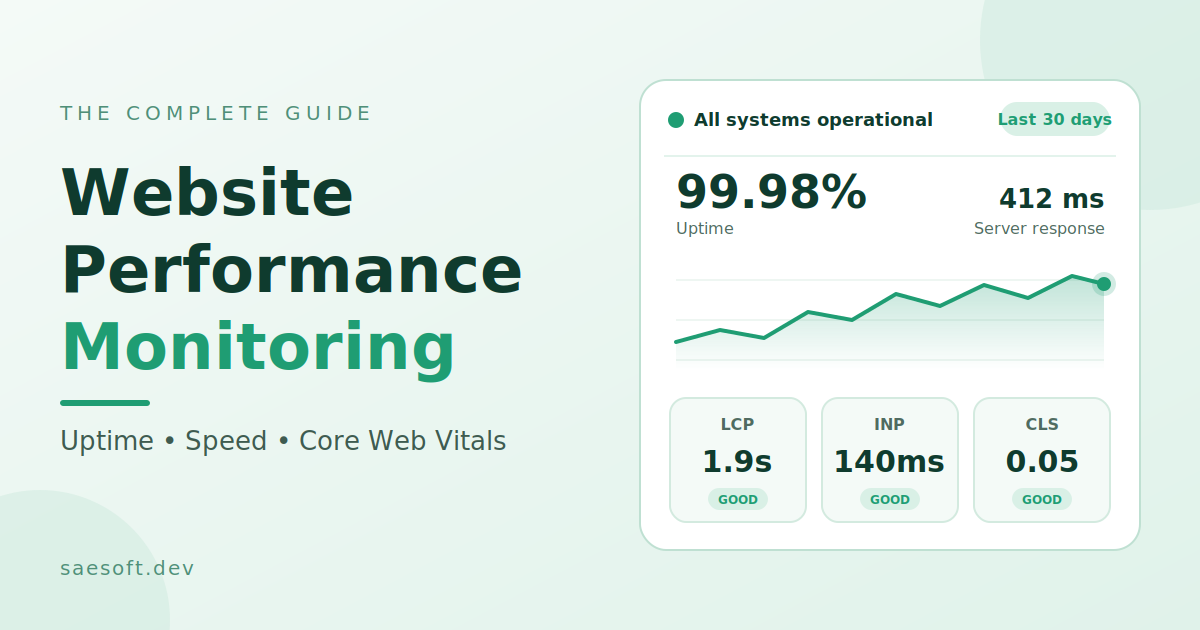
Your site can look fine from your desk and still fail for the people you built it for. You open the homepage on a fast laptop, it loads, and you move on. A visitor on a mid-range phone and a weak mobile link may wait six seconds for a button that never responds, then leave. Nothing in your inbox tells you it happened.
Website performance monitoring closes that gap. It is the ongoing check of whether your site is up, how fast it loads and responds, and whether anything is breaking along the way. Done well, website monitoring helps you find a slow page, a broken form or an expiring certificate before a customer does. Done badly, you learn about it from a lost sale, a bad review or lower search traffic.
This guide covers the topic from the ground up. You will learn what to measure, how lab data and real user monitoring differ, which tools fit which jobs, how to set up monitoring in a sensible order, how to write alerts people act on, and how to find the cause when a metric goes red. It ends with a practical 30-60-90 day plan for brochure sites and web apps alike.
It is written for business owners who want to know what their developers or agency should watch, and for developers who want a clear, practical checklist.
What website performance monitoring actually is
At its simplest, website performance monitoring means collecting measurements about your site on a schedule or all the time, storing them so you can see trends, and alerting someone when something crosses a line you care about.
Those measurements fall into a few families:
Availability: is the site up, and does it return the right response?
Speed: how long do pages take to start loading, show their main content and become usable?
Stability and responsiveness: does the layout hold still, and does the page react quickly when someone taps or types?
Are forms, logins, checkouts, and integrations actually working correctly, and is anyone seeing errors being thrown?
Capacity: is the server, database or hosting plan running close to its limits?
A single speed test tells you how one page behaved at one moment, on one connection, from one location. Monitoring tells you how it behaves over weeks, across devices and countries, and what changed on the day it got worse. That is the kind of information that helps you make decisions instead of guesses. Some teams call the page speed side website speed monitoring.
It also changes the nature of the work. Without monitoring, performance is something you fix in a burst, usually after a complaint. With it, performance becomes maintenance: small, regular and far cheaper.
Performance monitoring, uptime monitoring, APM and analytics
These terms get mixed, which causes real confusion when you are choosing tools or reading a proposal.
Uptime monitoring answers one question: is the site reachable? A service sends a request every minute or so, and alerts you if it fails or times out. The cheapest and most important layer, but it says nothing about how fast or how well the site works.
Website performance monitoring is the broader practice described in this guide. It includes uptime, speed, Core Web Vitals, errors and key user journeys.
Application performance monitoring looks inside your code and infrastructure. It traces a request through the server, shows which function or database query took the time, and tracks error rates and resource use. Tools in this category matter most for custom web applications, SaaS products and busy e-commerce stores. A simple brochure site rarely needs one.
Web analytics tells you who visited, where they came from and what they did. The focus is on behavior and marketing, not technical health, although some analytics tools now report Core Web Vitals as well.
Error tracking captures exceptions, in the browser and on the server, with enough context to reproduce and fix them.
A healthy setup usually mixes a few of these. What you need depends on how complex your site is and what a failure would cost you.
Why website performance monitoring matters
Slow and broken pages cost you visitors who never tell you. Most people do not report that a page felt slow. They leave. In analytics, that can show up as a higher bounce rate, but the number does not tell you why. The only way to see that loss is to measure how long things take and where visitors drop off.
It protects revenue from silent failures. The most expensive problems are rarely a dramatic outage. - They are a contact form experiencing email problems.
A payment button has been broken due to an update.
A booking widget is not functioning properly on a specific browser. Pages load, the site looks fine, and leads vanish. A scripted check that submits the form every hour can catch this within minutes.
Search engines take speed and reliability into account. Google uses Core Web Vitals as part of its page experience signals. They are only one signal, and useful content matters more, but fast and stable pages have an edge when content is similar. Reliability matters too: if Google hits errors or timeouts, it may crawl less often.
It makes every other improvement measurable. If you redesign the site, change hosting or add caching, you want to know whether the change helped. Without a baseline and continuous data, you are relying on opinion.
It reduces the cost of fixing things. A regression caught the day after a deployment points to an obvious cause. The same regression discovered two months later, after a dozen other changes, can take days to untangle.
It builds trust. Customers rarely praise a site for being fast, but they notice when it is slow, down or insecure. A site that simply works, every time, helps a business look credible.
The website performance metrics worth tracking
There are hundreds of possible website performance metrics. Most sites benefit from the few listed below, organized first from the visitor's perspective and second from the server's.
Availability and uptime
Uptime is the percentage of time your site is reachable and responding correctly. The numbers sound small but add: 99 percent uptime allows more than three and a half days of downtime a year, 99.9 percent allows roughly eight and three-quarter hours, and 99.99 percent allows around 52 minutes.
Do not rely on a simple did it respond check. Track the HTTP status code and, where the tool allows it, look for a specific piece of text on the page. A server can return a 200 status while showing an error message, and a basic check will call that healthy. Also monitor the things that quietly take sites offline: SSL certificate expiry, domain renewal dates and DNS changes. Alerts at 30, 14 and 7 days before expiry cost nothing and prevent embarrassing outages.
Server response time
Time to First Byte measures how long the browser waits after making a request before the first byte of the response arrives. Google treats about 0.8 seconds or less as good and more than 1.8 seconds as poor. TTFB covers DNS lookup, connection setup, redirects and the server's own work, so a high value points at slow hosting, uncached pages, heavy database queries or long redirect chains. Because everything else waits on it, a slow TTFB drags down every other metric.
First Contentful Paint
First Contentful Paint marks the moment the browser first draws any content, such as text or an image. The point where a visitor stops staring at a blank screen. A value of 1.8 seconds or less is good and anything above 3 seconds is poor. FCP is useful, but it does not mean the useful part of the page has appeared.
Core Web Vitals
Core Web Vitals are Google's three user-centered metrics, and the ones most worth understanding.
Largest Contentful Paint measures how long it takes for the largest visible element, usually a hero image, a headline or a large block of text, to render. Good is 2.5 seconds or less. Poor is more than 4 seconds. LCP is most often hurt by slow servers, large bloated images, render-blocking code and fonts that load late.
Interaction to Next Paint measures how quickly the page responds visually after user actions such as a tap, click or key press, looking across the whole visit and reporting something close to the slowest interaction. It replaced First Input Delay as a Core Web Vital in March 2024. Good is 200 milliseconds or less. Poor is more than 500. INP problems almost always come from too much JavaScript running on the main thread.
Cumulative Layout Shift measures unexpected movement of content while the page loads, the experience of reaching for a link and having it jump away. Good is 0.1 or less. Poor is more than 0.25. Common reasons include images without fixed sizes, ads loading slowly, banners, and fonts changing sizes.
Google evaluates each metric at the 75th percentile of real visits, separately for mobile and desktop. A page passes only when all three are good, so three out of four visitors need a good experience on each measure.
Total Blocking Time and long tasks
Total Blocking Time is a lab metric that estimates how long the main thread was too busy to respond during loading. It doesn't have a field equivalent but is useful for testing changes in a controlled environment. Under 200 milliseconds is good in Lighthouse; above 600 is poor.
Page weight and request count
The page size and requests don't affect Core Web Vitals, but they often cause issues. A page of six megabytes with 150 requests will be slow for someone on a poor connection no matter how good your server is. Tracking page weight over time shows you when a new image, library or tracking script has crept in.
Error rates
Track front-end JavaScript errors, failed network requests and server errors in the 5xx range, along with 404 responses for important pages. A rising error rate after a release is one of the clearest signs that something broke. Track the rate, not only the count, so busy days do not look worse than they are.
Server and database health
For custom applications and busy stores, watch CPU, memory, disk space and database performance. As starting points, sustained CPU above roughly 80 percent, memory close to exhaustion or a disk filling up are all warnings worth an alert. Slow database queries and connection limits appear here first, long before visitors see errors.
Conversion-critical journeys
Decide which journeys help your business goals. Measure actions like form submission, quote requests, cart additions, payments, logins, and appointments. A slow blog post is a nuisance. A broken checkout is a direct loss. A scripted check that walks through these steps on a schedule is one of the highest-value things you can set up.
Lab data versus field data
Most tools report two types of data. Confusion arises when people mix them up, causing conflicting numbers.
Lab data comes from a controlled test. A tool such as Lighthouse loads a web page on a simulated device and network, then measures what happens. Results are repeatable, available right away and detailed enough to point to causes. The limitation is that it is one simulated visit, not your real audience.
Field data comes from real visitors' browsers. Google collects it from Chrome users who opt in, in a dataset called the Chrome User Experience Report, or CrUX, and it is what feeds the Core Web Vitals report in Search Console and the top section of PageSpeed Insights. Field data reflects real-world devices, connections and locations, and it is the data Google actually uses. The limits are that it needs enough traffic to appear, covers a rolling 28-day window so changes show up slowly, and does not tell you why a number is what it is.
The practical rule is simple. Use field data to determine whether you have a problem and how many people it affects. Use lab data to diagnose and test fixes. Then return to field data to confirm that the fix worked for real visitors.
Do not be alarmed when the two disagree. A lab test showed 1.9 seconds, but real visitors on slower phones made it 3.1 seconds in field data. Field data wins. If your website lacks traffic for CrUX, use analytics or Google's web-vitals library for real-user data.
Synthetic monitoring and real user monitoring
Beyond lab versus field, there are two broad ways to run continuous monitoring, and a good setup uses both.
Synthetic monitoring runs automated tests on a schedule from fixed locations. It could be a ping every minute, a page load every hour, or a scripted form completion journey. It's reliable and thorough, working at off-peak times, detecting issues quickly, and perfect for checking updates. Its weakness is that it is a simulation of one kind of visitor.
Real user monitoring measures actual visits. A small script in the page records timings and errors from visitors' browsers and sends them to a dashboard. It shows how performance varies by device, browser, country and page, and it reveals problems that no synthetic test would think to look for. Its drawbacks include requiring traffic, reporting issues after real experiences, and raising privacy concerns discussed later. It also lets you compare performance with user behavior, such as which slow pages visitors leave.
Synthetic monitoring is like a smoke detector, while real user monitoring is feedback from residents. You want both.
Tools worth knowing, by job
Rather than a long list of products, it is more useful to match tools to jobs. Plans, limits and prices change often, so check current details before committing.
Job | Examples | Notes |
|---|---|---|
Real-user Core Web Vitals from Google | Search Console, PageSpeed Insights, CrUX | Free. Shows what Google sees. Needs enough traffic. |
Page-level diagnosis | Lighthouse, PageSpeed Insights, Chrome DevTools | Gives you a trace and clear recommendations. |
Detailed waterfall and multi-location tests | WebPageTest | Good for testing locations, devices and connection speeds. |
Uptime and SSL monitoring | UptimeRobot, Better Stack, Pingdom, StatusCake, self-hosted Uptime Kuma | Use keyword checks, multiple regions and expiry alerts. |
Scripted user journeys | Synthetic monitoring tools above, or Playwright-based checks | Verify forms, logins and checkouts on a schedule. |
Error tracking | Sentry and similar | Groups errors and shows the context needed to fix them. |
Real user monitoring | Privacy-friendly analytics with Web Vitals reporting, or the web-vitals library | Collect Core Web Vitals from your own visitors. |
Application and infrastructure monitoring | New Relic, Datadog, Grafana-based stacks | Most useful for custom apps, SaaS and busy stores. |
Start with two or three of these. A free uptime monitor, Search Console, and PageSpeed Insights cover more than many small business sites. Add error tracking next, then scripted journeys for your most valuable form or checkout. Reach for application performance monitoring only when you have questions the simpler tools cannot answer.
How to set up website performance monitoring, step by step
The order matters. Each step provides something useful on its own, ensuring your protection from the first day, not just when everything is completed.
Step 1: List what matters. Write the five to ten pages and journeys that carry the business: the homepage, your top landing pages from analytics, your main service or product pages, and every form, checkout or login. Everything else can wait.
Step 2: Record a baseline. For each page, run PageSpeed Insights and WebPageTest and note TTFB, LCP, INP where available, CLS, page weight and request count. Record the date and the conditions. Without a baseline, you cannot tell whether a number is bad or simply normal for your site, and you cannot prove an improvement later.
Step 3: Add uptime checks. Check the main and important pages every 1-5 minutes from multiple regions if possible. Add a keyword check so the monitor confirms the correct content, not just any response. Turn on SSL and domain expiry alerts.
Step 4: Connect Search Console. Verify your site, open the Core Web Vitals report and note any URL groups flagged as needing improvement or poor. Also look at the Crawl Stats report for server errors and response time as Google sees them.
Step 5: Add error tracking. Set up an error tracker for the browser and server to group and count exceptions with details.
Step 6: Collect real-user data. If you have lots of visitors, turn on Core Web Vitals in your analytics or use the web-vitals library. Segment by mobile and desktop from the start.
Step 7: Script your critical journeys. Make a test that does your main action, like filling a form, asking for a quote, or checking out, every hour. Use a test account or a clearly labelled test submission, and make sure it does not pollute your lead data or trigger real payments.
Step 8: Decide who owns the alerts. Choose where alerts go, who is responsible for each type, and what counts as urgent. An alert that lands in an inbox nobody reads is the same as no alert at all.
Step 9: Put it in the release process. Rerun your key tests after every significant deployment and compare them with the baseline. This single habit catches most regressions within hours.
Step 10: Book the review. Put a recurring monthly review in the calendar, and a lighter weekly glance at the dashboard. Monitoring that nobody looks at slowly stops being monitoring.
Setting alerts people do not ignore
Alert fatigue ruins more monitoring setups than missing tools ever do. If you ignore your phone buzzing for every blip, you learn to ignore it, and the one alert that matters gets lost in the noise.
Confirm before alerting. Fire an alert only after two or three consecutive failed checks, or when more than one location sees the failure. A single timeout from one region is usually the network, not your site.
Separate urgent from info. Downtime, a failing checkout test or an expiring certificate should reach a person immediately. A slow week, a creeping page weight or a single poor URL can sit in a weekly summary.
Tie thresholds to your baseline. If your typical Time To First Byte (TTFB) is 300 milliseconds, set an alert at approximately one second. Avoid using arbitrary numbers found in articles. The table below shows reasonable starting points that you should adjust.
Signal | Starting threshold | Urgency |
|---|---|---|
Site unreachable or wrong status | 2 consecutive failed checks | Urgent |
Critical journey test fails | 2 consecutive failures | Urgent |
SSL certificate expiry | 30, 14 and 7 days remaining | Scheduled |
TTFB, 75th percentile | Above about 1 second for 15 minutes | Investigate |
Server error rate | Clear rise above your normal rate | Investigate |
CPU or memory | Sustained above about 80 percent | Investigate |
Core Web Vitals in Search Console | Any group moves to needs improvement | Weekly review |
Write what to do. Each alert should link to a short note: what it means, who owns it and the first thing to check. At 2 a.m., nobody wants to work that out from scratch.
What belongs on a performance dashboard
A good dashboard answers is everything fine? in about five seconds. Resist the urge to show every metric you can collect. For most sites, one screen with the following is enough:
Current uptime status and the last 30 days of availability
Response time trend for your key pages, as a median and a 75th percentile
Core Web Vitals trend for mobile and desktop, with the pass thresholds drawn as lines
Error rate for the browser and the server
The result of your scripted journeys
Deployment markers, so you can see which release lines up with a change
Deployment markers are the most underrated item on that list. A vertical line showing when a release went out turns a mysterious change in a graph into an obvious cause.
How to read the data without being fooled
Averages hide the worst experiences. If most pages load quickly but some take longer, the average seems fine, but many visitors have a bad experience. Use percentiles instead. The median represents the typical visit. The 75th percentile is utilized by Google for Core Web Vitals. The 95th percentile indicates your worst regular experiences.
Segment before you conclude anything. Split the data by device, country, browser and page type. A website may load quickly on a computer but slowly on a phone. Visitors far away wait longer. A problem that affects only mobile visitors in one region will vanish in an overall average.
Expect noise and seasonal swings. Traffic mix changes by day of week, campaign and season. Compare like with like, such as this Tuesday to last Tuesday, and look for sustained shifts, not single spikes.
Remember the delay in field data. Because the Chrome data covers a rolling 28-day window, a genuine fix can take several weeks to fully appear in Search Console. Use lab tests and your own real-user data to verify a fix earlier, and be patient with Google's reports.
Correlate before you blame. - When a metric changes, examine other changes that occurred on the same day.
These changes may include releases, plugin updates, new scripts, traffic spikes, or hosting incidents. Most explanations are on that list.
Diagnosing a problem: what to check when a metric goes red
When a number gets worse, the cause usually falls into a short list. Start with a waterfall chart from WebPageTest or the Network panel in Chrome DevTools, then use the guide below.
If TTFB is high
Check whether pages are cached. Pages built from scratch on every request are the most common cause on content-managed sites.
Look for slow database queries and heavy work happening on every page load.
Count redirects. Each hop adds a full round trip, and chains such as http to https to www to a trailing slash add.
Review your hosting. Shared plans that are over-subscribed, or servers far from your audience, slow every request. A CDN or a better plan often helps.
If LCP is poor
Identify the LCP element in the lab report. Often an image, so check its format, dimensions, and file size. Modern formats such as WebP or AVIF and correctly sized images make a large difference.
Make sure the LCP image is not lazy-loaded, and prioritize it with the
fetchpriorityattribute or a preload.Remove or defer render-blocking CSS and JavaScript that delays the first paint.
Check that you load web fonts efficiently and they do not delay text from appearing.
Fix TTFB first if it is high, because LCP cannot be faster than the server response.
If INP is poor
Find the slow interaction with the Performance panel in DevTools, or with a real user monitoring tool that ties INP to specific elements.
Look for long JavaScript tasks. Large bundles, heavy third-party scripts and expensive event handlers are the usual causes.
Remove scripts you do not use, such as old chat widgets, trackers and A/B testing tags, and defer the ones that can wait.
Break long tasks into smaller pieces so the browser can respond between them.
If CLS is poor
Set explicit width and height, or an aspect ratio, on every image, video and embed.
Reserve space for banners, cookie notices and ads, so they do not push content down when they load.
Don't add content above what's being read. Make sure changing fonts doesn't mess up line lengths.
If errors rise
Compare the start of the rise with your deployment markers.
Group errors by type, browser and page, and fix the one that affects the most visitors first.
Check third-party services your site depends on, such as payment providers, form processors or APIs. An outage there looks like an error on your site.
If everything is slow at once
Look at server resources, hosting incidents, expiring certificates and DNS problems before touching the site code. When every page degrades together, the cause is rarely in a single page.
Performance budgets and testing before release
Monitoring finds problems after they reach visitors. A performance budget helps stop them reaching visitors in the first place.
A budget sets limits for the team, like page size, LCP value, or JavaScript amount on the homepage. When a change would break the budget, the team sees it during development instead of after launch.
Lighthouse CI can automatically run Lighthouse on each change and compare the results with your thresholds, flagging a pull request that adds a heavy library. Pair that with a post-deployment run of your synthetic monitoring tests and you have two safety nets, one before release and one after.
Keep budgets realistic. Start from your current baseline and aim to prevent decline before you try to improve. Tighten the limits gradually as you fix issues.
What to do when an alert fires
Decide your response before you need it. A simple routine is enough:
Confirm. Check whether the problem is real and who it affects: everyone, one region, one device, one page.
Communicate. Inform the people who need to know, and if customers are affected, clearly state it on your site or a status page.
Look for the recent change. Check the deployment log, plugin updates, DNS or hosting changes, and third-party outages.
Restore first, investigate second. Roll back the change or switch off the faulty feature if that is the quickest way to restore service. Find the root cause once things are stable.
Write it down. Record what happened, who found it, how long it lasted, and what will prevent a repeat. A short note after each incident turns annoyance into a better setup.
Over time, notes reveal patterns like a problematic plugin or a server issue at a specific time.
Website performance monitoring and SEO
Performance monitoring supports SEO in two ways: it protects the experience signals Google measures, and it protects crawling.
The Core Web Vitals report in Search Console groups URLs and shows pass or fail on mobile and desktop. Fixing a template problem often improves a whole group of pages at once. After making a fix, validate in the report and give Google about four weeks to confirm it. The data updates slowly.
The Crawl Stats report displays how often Google visits your site, the response codes, and average response time. An increasing number of server errors or a slowing response time warns that crawling may be affected. Combine it with your uptime history to see whether outages matched crawl problems.
Keep perspective, though. Performance is a support factor, not a replacement for content that answers what people are searching for. A fast page with thin content will not outrank a slightly slower page that is far more useful. Treat performance as removing obstacles, not as a ranking trick.
Privacy and compliance
Real user monitoring collects data from visitors' browsers, which can include identifiers such as IP addresses. Depending on where your visitors live and what the tool collects, consent rules may apply. Tools that respect privacy by avoiding cookies and personal data lessen the load. Collecting only anonymous timing data simplifies things. Check how the tool manages data, include it in your privacy policy, and seek guidance if unsure.
Doing it yourself or getting help
A small brochure site can usually be monitored by its owner with free tools and about thirty minutes a month. The setup in this guide is within reach for most people comfortable with a dashboard.
Help becomes worthwhile when:
The site is a web application, an online store or a lead engine where downtime costs money directly
Nobody on your team has time to review data and act on it
Problems keep returning and the root cause is in the code or infrastructure
You need scripted journeys, alert routing and release checks built properly
The important thing is that someone owns the work. If you, an employee, or a maintenance agency want better performance, someone must review and fix the results.
A practical 30-60-90 day plan
Days 1 to 30: get protected
List your key pages and journeys
Record a baseline in PageSpeed Insights and WebPageTest
Set up uptime, keyword and SSL monitoring
Verify Search Console and review the Core Web Vitals and Crawl Stats reports
Decide who receives alerts
Days 31 to 60: get visibility
Add error tracking for the browser and server
Start collecting real-user Core Web Vitals
Script your most important journey and run it hourly
Build a single dashboard with deployment markers
Fix the two or three biggest issues you found, usually images, scripts or caching
Days 61 to 90: make it a habit
Add performance budgets and a post-deployment test run
Tune alert thresholds to cut noise
Hold your first monthly review and write what changed.
Document the response routine for incidents
Choose the next improvement based on data, not guesses
Common mistakes to avoid
Testing only the homepage. Your slowest and most valuable pages are often deeper in the site, such as a product page, a quote form or a checkout.
Trusting lab scores alone. A perfect Lighthouse score does not mean real visitors on real phones are happy.
Chasing a number instead of an experience. Aim for pages that feel fast and work reliably. A score is a means, not the goal.
Alerting on everything. Noise trains people to ignore the system.
Monitoring without ownership. An alert with no owner is decoration.
Ignoring mobile. Most visits come from phones, and mobile is where problems are most visible and where Google measures separately.
Forgetting third-party scripts. Tags added by marketing tools are a leading cause of slowdowns, and they are easy to forget.
Fixing symptoms. Compressing one image when the real problem is an uncached server only moves the problem.
Setting it up once and walking away. Sites change constantly, and monitoring has to change with them.
Frequently asked questions
How often should I check my website's performance?
Run uptime checks every one to five minutes and scripted journeys hourly. Test page speed monthly and after every significant release. We collect real-user data continuously and review it weekly or monthly.
What is a good page load time?
No single number fits every site, but a solid target is an LCP of 2.5 seconds or less, an INP of 200 milliseconds or less and a CLS of 0.1 or less for at least 75 percent of visits, on both mobile and desktop.
Is free monitoring enough for a small business site?
Often, yes. Search Console, PageSpeed Insights, WebPageTest and a free uptime plan cover the essentials. Paid tools are useful for quicker checks, additional locations, scripted journeys, extended history, or application tracing.
Does website speed affect SEO?
Yes, but moderately. Core Web Vitals are one ranking signal among many, and relevance carries more weight. The larger benefit is indirect: fast, reliable sites keep visitors engaged and avoid crawl problems.
What is the difference between uptime monitoring and performance monitoring?
Uptime monitoring checks that the site is reachable. Performance monitoring also measures how fast and how well it works. You need both, because a site can be up and still be too slow to use.
How long until improvements appear in Search Console?
Because the field data covers a rolling 28-day window, a fix typically takes several weeks to show fully. Verify earlier with lab tests and your own real-user data.
Does a small website need monitoring?
Yes, in a light form. A free uptime monitor, Search Console and a monthly speed check cost almost nothing and catch the problems that matter most.
How much does website monitoring cost?
It ranges from free to substantial monthly fees for enterprise tools, depending on the tools and the complexity of your site. Most small business sites can start free and add paid features only when a specific need appears.
Final thoughts
Website performance is not a one-time project. Measuring, noticing change, and fixing small problems before they grow into expensive ones is a habit. The tools are mostly free or inexpensive, and the first steps take an afternoon: an uptime check, a look at Core Web Vitals in Search Console and a baseline for your key pages.
From there, add error tracking, a scripted test of your most important form or checkout, and a monthly review. Each layer makes the next problem easier to catch and cheaper to fix.
If you prefer not to handle it yourself, a maintenance plan that includes monitoring, updates, and fixes can take care of it for you, ensuring that problems are found and resolved while you focus on running the business.
Q&A
Question: Which parts of a website should be monitored first?
Short answer: Start with the pages and journeys that matter most to the business: the homepage, top landing pages, key product or service pages, contact forms, quote requests, logins and checkouts. Watching everything can be noisy. Focusing on key areas protects where failures matter most.
Question: Why is a keyword check better than a basic uptime check alone?
Short answer: A basic uptime check may only confirm that the server returned a response, such as a 200 status code. A keyword check also confirms that the expected content appears on the page. This helps catch cases where the site technically responds but shows an error page, broken template or wrong content.
Question: When should a site add application performance monitoring?
Short answer: Application performance monitoring is most useful for custom web applications, SaaS products, busy online stores and sites where downtime or slow code directly affects revenue. Basic websites may not require APM initially. They can begin with uptime monitoring, Search Console, PageSpeed Insights, error tracking, and scripted journey checks.
Question: What should you do if lab data and field data disagree?
Short answer: Treat field data as the better picture of what real visitors experience, because it comes from actual devices, networks and locations. Use lab data to diagnose the issue, test fixes, then check field data to confirm improvements.
Question: How can teams avoid ignoring monitoring alerts over time?
Short answer: Alerts should be limited to signals that need action, confirmed before firing and routed to a clear owner. Urgent issues such as downtime, failed checkout tests, and certificate expiry should reach someone immediately, while slower trends can be discussed in weekly reviews. Every alert should also include a short note explaining what it means and what to check first.