Why most businesses lose hours to repeat work
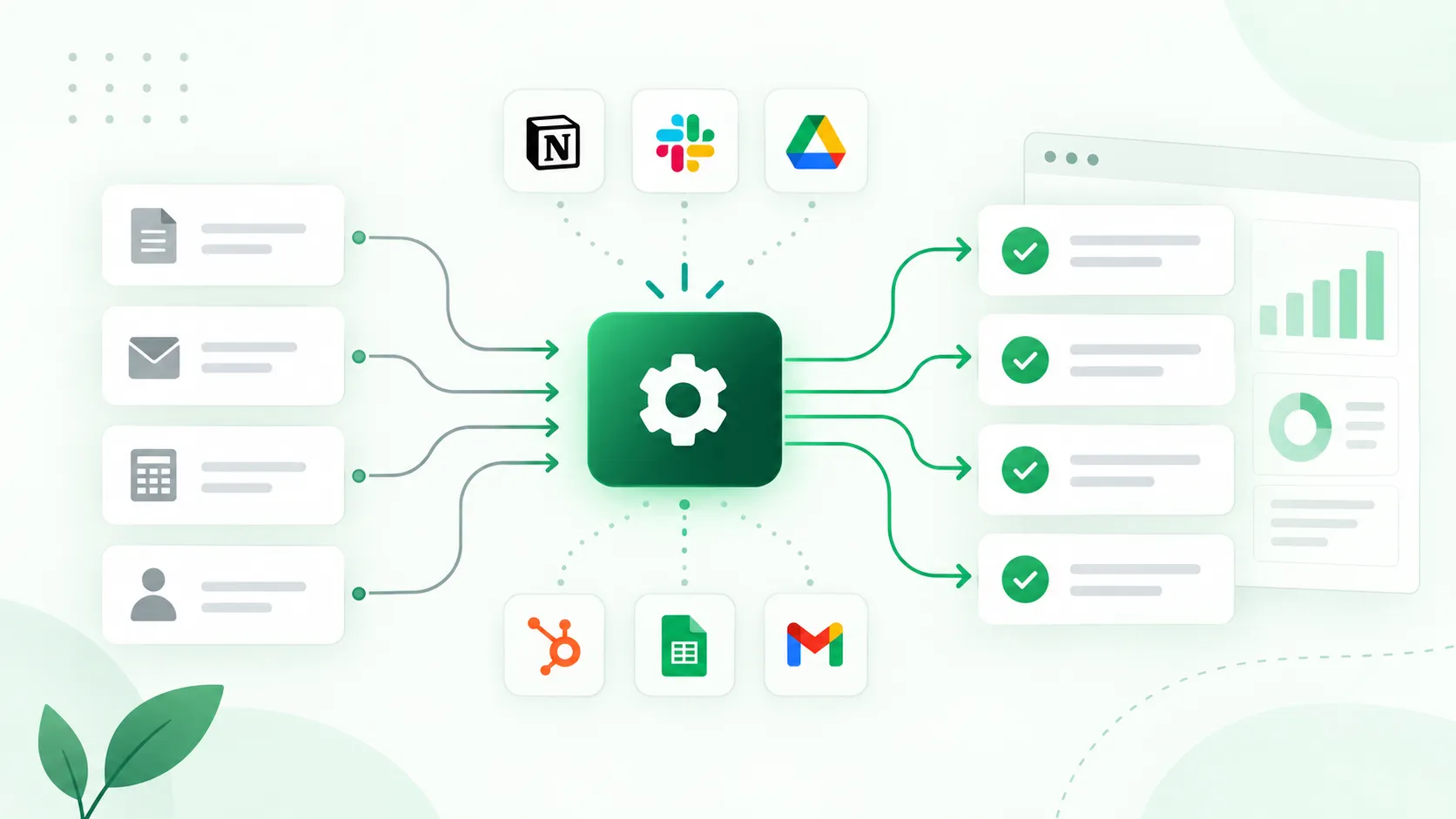
Businesses lose hours every week on repeat work. They copy data, send the same emails, build the same reports, update sheets, and ping team members by hand.
Business process automation lets software handle these routine tasks. The goal is not to automate everything. Good automation cuts busywork and keeps people in the loop where judgment, approval, or customer contact matters.
If you want to learn how to automate a business process, start with one clear flow. This guide shows how to automate business processes in a simple, safe way. It covers how to pick the right work, build a solid flow, choose no-code or custom tools, and avoid the traps that make automations fragile.
What is business process automation?
Business process automation (BPA) is the use of software to run repeat tasks or workflows with little manual work.
A simple example: Customer submits form → Check data → Create CRM record → Send confirmation email → Notify sales team
Without automation, someone does each step by hand. The same idea applies to onboarding, reporting, invoicing, data sync, internal notes, and document work.
Automation does not need AI. Many of the best flows run on plain business rules: If invoice is overdue → notify account manager → send reminder → update internal status
That flow needs solid logic, not AI.
Why businesses automate processes
The main reason is not tech for tech's sake. It is removing busywork. Done well, automation:
cuts repeat data entry
improves consistency
moves data between systems faster
reduces simple human errors
frees people for judgment-based work
It also makes a process easier to see. A manual flow often lives in one person's head. An automated one spells out what happens, when it happens, and what to do when something goes wrong.
Which business processes can automate?
A good candidate has a repeat trigger, clear rules, structured data, and a clear result. Common examples: lead management, customer onboarding, reporting, invoice flows, data sync, order work, and admin tasks on a schedule.
Lead management
Manual version: Website form → Someone checks email → Copies lead into CRM → Sends confirmation → Pings sales team
Automated version: Website form → Check lead → Store lead → Create or update CRM record → Send confirmation → Notify the right team member
The team still decides what to do with the lead. Automation only removes the repeat movement of information.
Customer onboarding
Customer created → Create internal account → Send welcome note → Create onboarding tasks → Notify team → Update CRM
Automating these steps keeps onboarding steady, no matter who is busy that day.
Invoice follow-ups and payments
Overdue notes, status updates, and payment alerts follow clear rules, so they are a good fit. For a deeper walk-through, see our guide to automating invoice work for small businesses.
Reporting
Database + CRM + analytics → Collect data → Process metrics → Generate report → Send dashboard or email
The key is to make sure the source data and math are sound before you automate the send step.
Data sync
Many businesses use several tools with the same customer, product, or sales data. Automation keeps them in sync, avoids duplicate entry, and stops systems from drifting apart. This often uses API links between systems.
How to identify work worth automating
The best chances are already visible in daily work. Ask:
What do people on the team keep copying, checking, sending, updating, downloading, uploading, or rebuilding?
Good candidates often share these traits:
The work happens often
The steps are predictable
The input is fairly structured
Errors have real cost
It takes real staff time
Frequency alone is not enough. A task done hundreds of times can still be a bad fit if each case needs careful human judgment.
Not sure about your workflow? Try the Automation Readiness Calculator further down this page. It scores your process on seven points in about a minute.
The 10-step process to automate a business process
Step 1: Document the current process
Do not start by picking a tool. Write down what starts the work, what data enters it, which systems are involved, what choices are made, what actions happen, and what marks the end.
Trigger: New quote request
Input: Name, email, company, service, budget, project details
Actions: Check form → Store lead → Notify admin
Outcome: Lead is ready for review
Now you have something real to improve.
Step 2: Remove unnecessary steps first
A common mistake is automating a messy process as it is. If people copy the same data through four sheets out of habit, automation only makes the mess move faster. Simplify first, then automate.
Step 3: Define the trigger
Every automation needs a clear start point: a form submit, new record, payment event, webhook, schedule, new email, status change, file upload, or admin action.
Be specific. Instead of “when something changes,” use “when an approved order changes from PENDING to PAID.” Clear triggers are easier to build, test, and keep up.
Step 4: Define the business rules
New lead ↓ Is service = Automation? ├─ Yes → Automation path └─ No → General sales path
Keep rules clear rather than spread across many scripts or apps. This matters more as work grows.
Step 5: Decide what should stay human
Automation should not remove people just because it can. Keep human review for approvals, unusual deals, key customer messages, money choices, sensitive data, unclear docs, and high-stakes actions.
Automation prepares the info → Human review → Approved action
This mixes speed with oversight.
Step 6: Choose the right automation approach
Not every flow needs custom software. Simple, linear flows often work well with no-code tools. Complex ones may need custom APIs, databases, background jobs, login, and validation.
Let these points guide the choice: flow size, reliability needs, data sensitivity, expected volume, needed links, running cost, and how critical the work is. Use the simplest setup that solves the problem well. The next section compares the options.
Need a second opinion on which approach fits? Talk to us about your automation project.
Step 7: Design for failure
A flow that only works when every outside service is perfect is not reliable automation. APIs go down, webhooks arrive twice, requests time out, data comes in half-finished, credentials expire, and rate limits get hit.
Dedupe logic. If a payment provider sends the same webhook twice, naive automation creates two orders or sends two emails. Dedupe logic means the same event can run again without making extra records.
Retries. Some failures are short. Retry with limits and backoff, not forever.
Validation. Never trust data just because it came from an API. Check key fields before later steps run.
Logging and alerts. When something fails, the team must know which flow failed, what event caused it, where it failed, and whether manual help is needed. Silent failure is worse than a manual process.
Step 8: Test beyond the happy path
Test missing data, duplicate events, bad values, down APIs, access failures, timeouts, odd replies, and manual overrides.
A lead flow should not only test Valid lead → CRM, but also: Invalid email, duplicate submit, CRM down, email service down, odd service value.
This is where reliable automation is different from a quick script.
Step 9: Launch gradually
For important flows, do not replace the manual process overnight. Automate data capture first while keeping final actions manual. Once you trust the flow, automate more steps. This lowers risk and helps the team learn how it behaves on real data.
Step 10: Monitor and improve
Processes change. APIs change. Teams change. A flow built today may need changes in six months. Check important workflows regularly and ask whether they still solve the right problem.
No-code vs custom automation
Factor | No-code platforms | Custom development |
|---|---|---|
Best for | Linear flows, common apps | Complex rules, private systems |
Speed to launch | Fast | Slower up front |
Business logic | Simple to mid-level | Any level |
Error handling | Basic to mid-level | Fully tailored |
Volume | Low to mid | High |
Data control and security | Depends on platform | Full control |
Admin interface | Platform UI | Custom dashboard |
Ongoing cost | Subscription, grows with use | Build cost, hosting, upkeep |
The two can also work together: A custom app can handle the core logic while a platform handles low-risk alerts and links.
Popular automation tools at a glance
Tool | Typical fit |
|---|---|
Zapier | Quick app-to-app links with little setup |
Make | Visual multi-step flows with more branch control |
n8n | Flexible flows, self-hosting, dev-friendly |
Custom code (APIs, queues, databases) | Critical, high-volume, or very specific work |
Check each vendor's current features and pricing before you decide. Browse more options in our automation tools directory.
How to estimate the ROI of automation
A simple starting formula: Annual savings = hours per week × hourly cost × 52
Net benefit = annual savings − (build cost + yearly tool and upkeep cost)
Example: A task takes 5 hours a week at a loaded cost of $25 an hour. That is 5 × 25 × 52 = $6,500 a year. If automation costs less than that in the first year, it pays for itself. Error cuts are extra upside. Add the cost of mistakes too, like refunds, missed follow-ups, and rework.
Where AI fits into business automation
AI is useful when a flow uses messy input: extracting data from documents, sorting messages, summarizing text, drafting replies, or turning natural-language input into structured data.
Incoming document → AI extracts data → Check the result → Apply business rules → Human review if needed → Update system
But do not add AI to rule-based work just because it is there. If a rule can be written as status === 'PAID', regular logic is more clear than asking a model if an order is paid.
Common business automation mistakes
The biggest problems are in the system, not the code:
Automating a process before you understand it
Automating unnecessary steps
Building large flows without failure handling
Assuming outside APIs are always up
Automating choices that still need human judgment
Building everything at once
A better path: automate one clear flow, check it, measure the gain, then expand.
Example: automating a business lead workflow
Visitor submits quote → Check submission → Save lead in database → Send internal note → Admin reviews lead → Update lead status → Follow up with prospect
The key point: the lead is saved before the note is sent. If the email service fails, the business does not lose the inquiry.
Important business data should not depend on a second note system working.
Case study: Routing quote and contact requests with Make and HubSpot
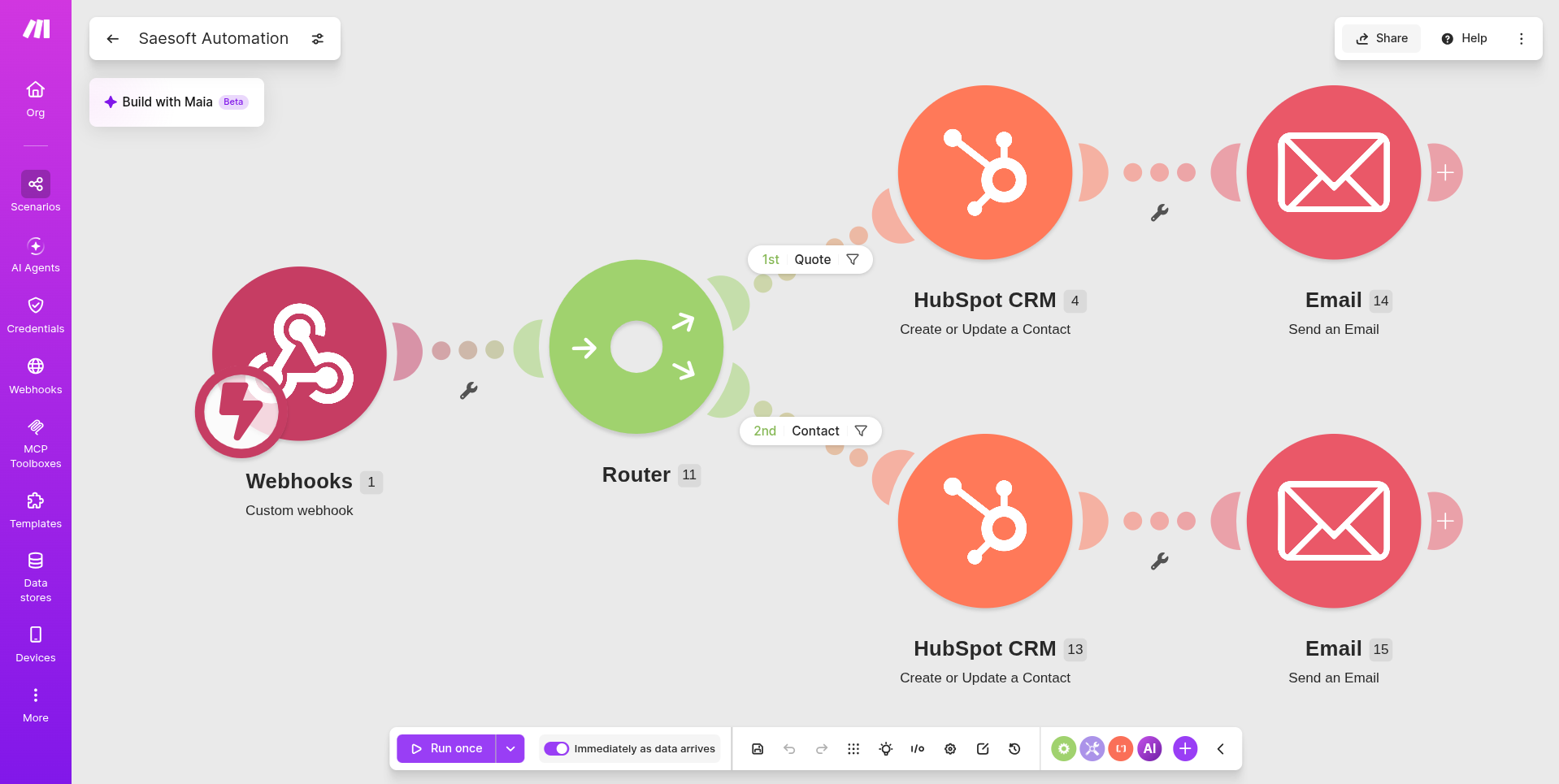
Saesoft's own Make scenario, Saesoft Automation, turns each incoming submission into a HubSpot contact and a follow-up email, with separate handling for quote requests and general contact messages.
How the workflow runs
A custom webhook receives each submission.
A router checks the submission type. The first route handles quote requests, the second handles contact messages.
On each route, HubSpot's
Create or Update a Contactaction saves the person, so a repeat sender updates an old record instead of creating a duplicate.An email action sends the follow-up note for that route.
Before: Each submission had to be read, copied into HubSpot by hand, and answered with a hand-written email. Someone also had to decide if it was a quote request or a general message.
We set up a scenario that includes a webhook trigger and a router. The router is used to distinguish between quote requests and contact messages. Each route has steps for HubSpot and email.
After: Every submission creates or updates its HubSpot contact and sends the right email by itself. Quote requests and contact messages follow separate routes, and nobody copies data between systems.
Where it can be hardened
The contact is saved in HubSpot before the email is sent, which follows the store-before-notify rule from the lead workflow example above. With two filtered routes, the system drops a submission that matches neither filter. A fallback route and an error handler, as described in Step 7, close that gap.
How much automation does a business need?
More is not always better. A small company may get major value from three or four repeat flows. A larger team may need dozens of connected flows. Start with the work that creates the most friction, takes the most repeat effort, or keeps causing avoidable errors, then expand based on real results.
When automating business processes, start with one flow.
When custom business automation makes sense
Custom automation fits when current tools cannot show your rules well. That can happen when many systems must share data, flows need deep checks, internal databases are involved, login is special, existing automation has become fragile, or you need a custom dashboard or admin view.
The real question is not custom or no-code. It is: what is the simplest reliable system that solves the business problem?
Start with one repetitive process
Do not try to automate the whole business. Pick one flow, write down how it works today, spot the repeat steps, remove unnecessary ones, define the trigger and rules, then automate the smallest useful version and watch how it performs.
A set of small, reliable flows can remove a lot of friction without a huge change project. If you want to automate your business process, this is the best place to start.
Frequently asked questions
What is the first step to automate a business process?
Write down how the process works today: its trigger, inputs, systems, choices, and result. You cannot reliably automate something you cannot describe.
Which business processes are best to automate first?
Frequent, rule-based, structured, and costly-when-wrong work, such as lead capture, invoice reminders, onboarding tasks, and repeat reports.
Do I need AI to automate business processes?
No. Most useful automations run on clear rules. AI helps most with messy inputs like documents and messages.
Should I use no-code tools or custom software?
Use no-code for simple, linear flows with common apps. Choose custom development when you need complex rules, high volume, strict security, private integrations, or better error handling.
How do I know if an automation is worth the cost?
Estimate hours saved × hourly cost × 52 weeks, add the cost of errors avoided, and compare that with build and upkeep costs.
How do I keep automations from failing silently?
Add validation, limited retries, dedupe logic, and logs with alerts, so someone is told when a flow needs manual help.
Need help automating a business process?
Saesoft builds custom business automation systems, API links, data flows, internal tools, and software that connects the systems you already use. If you have a repeat workflow that eats time or makes people move data between systems, we can help you decide what to automate and which setup makes sense.
Discuss your automation project →
Prefer practical guides by email? Subscribe to the Saesoft newsletter.
Free assessment
Business Process Automation Readiness Calculator
Answer seven questions to estimate whether your workflow is a good candidate for automation. The assessment considers process frequency, repetition, rule clarity, manual effort, system complexity, error impact, and the amount of human judgment required.
Answer all seven questions to see your score.